Grow Green. Grow Smart.
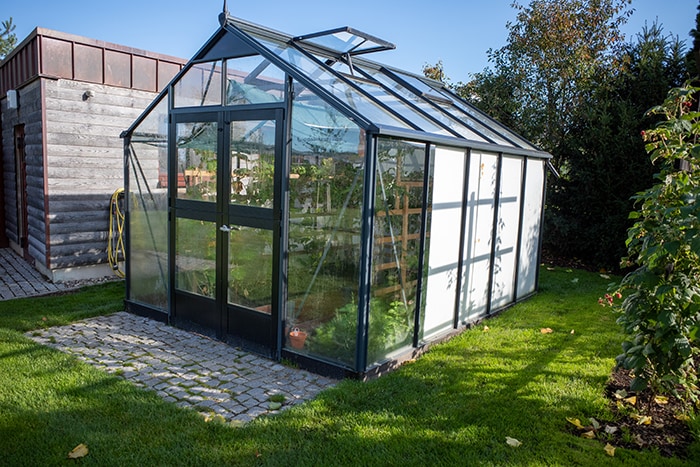
Image Source:
metamorworks/Shutterstock.com
By Michael Parks, PE for Mouser Electronics
Published December 7, 2021
Introduction
Over the past few years, Arduino has steadily grown beyond its humble roots as a singularly-focused platform for
students and hobbyists into a wide-ranging portfolio of development boards. From education to machine learning,
and from industrial controls systems to the Internet of Things, the modern Arduino ecosystem has something for
almost every embedded system use-case. The Arduino Pro Family line of products offer robust hardware meant for
the exacting demands of many professional applications without sacrificing the ease of programming or
integration with third-party hardware.
Figure 1: Arduino is moving into the professional engineering market with
their Pro line of products, such as the agriculture-oriented Edge Control board. (Source: Mouser)
One such application area Arduino has targeted with their Pro Family products is the agricultural market. The
Edge Control board (Figure 1) is a powerful embedded built specifically for remote
monitoring
and intelligent control of devices used in agricultural applications such as hydrostatic watermark sensors
and
water control valves. It is built to be powered by lithium ion batteries, sealed lead acid batteries, or
photovoltaics so it can operate for long periods of time between servicing. Furthermore, it features two MKR
board expansion slots so that additional functionality, such as sensors or wireless connectivity, can be
added
quickly and easily. This is very useful in that it allows developers to customize the solutions as needed.
For
example, depending on the location, it may be necessary to switch from GSM to LoRa communications.
Figure 2: Greenhouse are becoming increasingly popular for individuals and
families given recent supply chain issues. (Source: Green Shoe Garage)
Backyard gardens and greenhouses are enjoying a modern renaissance for many reasons, such as a desire to
eat healthy
while also lowering the grocery bill or to become more self-sufficient (Figure 2). In
this
project, we will leverage the Edge Control board to help improve our greenhouse crop yield by closely
monitoring
environmental factors such as temperature and sunlight exposure as well as automating mechanisms that
can alter
the environment to desired setpoints (e.g., turn a fan on to lower temperature or turn on growing lights
to
compensate for lack of sunlight). Lastly, we send all telemetry back to the cloud so we can monitor
remotely as
well as add a manual control feature to override the automation as desired by the end user.
Project Materials and Resources
Bill of Materials
You can visit this
Mouser project share link to access the BOM along with the current pricing. As of the date this
article was written, the BOM cost is about $380 (USD), before applicable taxes and shipping costs.
Table 1 lists the items in the BOM.
Table 1: Remote Greenhouse Monitoring and Control BOM
|
Quantity
|
Mouser P/N
|
Description
|
|
1
|
782-ASX00029
|
MKR Environmental Sensor Shield
|
|
1
|
782-AKX00034
|
Arduino Edge Control Board
|
|
1
|
782-ABX00023
|
MKR1010 Wi-Fi Board
|
|
1
|
485-1980
|
TSL2591 Light Sensor
|
|
1
|
426-SEN0189
|
Water Turbidity Sensor
|
|
1
|
426-SEN0249
|
Soil pH Sensor
|
In addition, this project utilizes hardware built specifically for heavy agriculture applications,
including a
three-wire ball valve, a hydrostatic watermark sensor, and a relay control board. These should be
readily
available at retailers that specialize in farming and other agricultural products. Also, to mount the
Edge
Control carrier board to an enclosure, three M3-0.5 x 5mm machine screws are required.
Resources
All source files for this project are located on Mouser's GitHub
repository. The repository is divided into three main folders including:
Documentation
The Documentation folder contains graphic files of schematics and other important reference
materials.
Figure 3: 3D model of a mounting device for the Edge Control board. (Source:
Green Shoe Garage)
3D Files
The 3D Files folder contains the raw (in various formats) and STL files for the mounting
bracket
(Figure
3). These files are made specifically for this project and are ready to be 3D printed at your
convenience.
Software
The Software folder contains the source code, including the following subfolders and
associated files:
Greenhouse MKR 1010 Board:
mkr1010.inodfr_turbidity_sensor.hdfr_soil_ph_sensor.hsystem_settings.hthing_properties.harduino_secrets.h
Greenhouse Edge Control Board:
More details about these files can be found in the Software section below.
Building the Project
The possibilities afforded by the Edge Control board are vast. It is great that every solution built
around the
Edge Control platform can be tailored to the specific needs of your particular greenhouse setup. For
this
particular effort, we will be interested in monitoring the following variables:
- Ambient temperature
- Relative humidity
- Illuminance (Foot Candles over course of day)
- Soil pH level
- Water turbidity
You might point out that water turbidity (the amount of particulate matter suspended in water) is odd
for a
greenhouse. In this particular greenhouse, the client uses a small pond of goldfish to generate the
“fertilizer” to sustain the plants in a sustainable manner.
In addition to monitoring the environment inside the greenhouse, we wish to add automatic and manual
control over
the following devices:
- Ventilation fan
- Water valve
Hardware Setup
At this greenhouse there is Wi-Fi connectivity already, so the project leverages the MKR1010 board to
allow for
bidirectional communication between the Edge Control board and the Arduino IoT Cloud service.
Solutions are
available for GSM, LoRa, Sigfox, and NB-IoT networks as well. To allow the device to be moved around
the
greenhouse as needed, it will be powered by a sealed lead acid battery.
While the MKR Environmental board does have an onboard light sensor, we will not be using it since
the Edge
Control board I (Figure 4) will be mounted in such a way as to avoid direct
exposure to
sunlight. This is done to ensure only the ambient temperature is measured and to keep the board from
overheating
due to direct exposure to the sun. However, we do want to measure the amount and duration of
sunlight exposure
that plants receive, so an externally wired light sensor is used to collect sun exposure datapoint.
Figure 4: Key feature of the Arduino Control board. (Source: Arduino)
Assembling the electronics hardware is rather straightforward and only minimal tools will be
required.
Let’s begin:
- Place the coin cell battery into the coin cell slot of the Edge Control board. Mind the
polarity of the
battery. NOTE: This is critical, as failure to place the battery into the
Edge Control
board can result in bricking the board. You have been warned!
- Place the MKR1010 expansion board (Figure 5) into the MKR2 expansion slot.
Ensure that the
MKR1010 board is placed correctly into the Edge Control board expansion slot as the MKR
boards are not keyed
and can be easily placed onto the carrier board incorrectly.
- Place the MKRENV environmental sensor shield atop the MKR1010 board. Again, ensure the
proper placement as
the boards are not keyed and the board can be put in backwards.
Figure 5: Arduino Edge Control board has two expansion ports compatible with
the MKR form factor. (Source: Mouser)
At this point, the data-processing and communications components of the Edge Control board
are fully assembled.
Next, we will add the sensors and actuators to the Edge Control carrier board. Since the
main assembly will be
mounted in a way as to be shielded from direct sunlight, an external TSL2591 light sensor
(Figure
6) will need to be wired into the MKRENV shield and ran to a location within the greenhouse where
it can be exposed to direct sunlight. Let’s install the external light sensor:
Figure 6: The TSL2591 light sensor breakout board. (Source: Mouser)
- Solder the male headers to the TSL2591 light sensor breakout board.
- Connect a wire to
SCL pin of the breakout board. Then connect the other
end of the wire to pin D12 of the
MKR1010 (D12 is also connected to the hardware I2C controller)
- Connect a wire to
SDA pin of the breakout board. Then connect the other
end of the wire to pin D12 of the
MKR1010 (D12 is also connected to the hardware I2C controller)
- Connect a wire to
GND pin of the breakout board. Then connect the other
end of the wire to pin GND of the
MKR1010.
- Connect a wire to
VIN pin of the breakout board. Then connect the other
end of the wire to pin 3.3V or 5V of
the MKR1010. The breakout board contains hardware to step-down 5V to 3.3V.
We will use a hydrostatic watermark sensor (Figure 7) to monitor the
water levels in the fish
tank and control a 3-wire motorized ball valve to add water as needed. A voltage divider
circuit with the
sensing mechanism acting as variable resistor to translate the height of water to a
voltage. The status of the
water valve and the water level measurement will be fed back to the MKR1010 board via an
I2C-based RPC, which in
turn will be sent up the Arduino IoT Cloud. Let’s begin by wiring in the 3-wire
motorized ball valve to
the Edge Control carrier board:
Figure 7: A 3-wire motorized ball valve. (Source: Green Shoe Garage)
- Connect
GND wire of the ball valve to the 5V Analog In
pin of the Edge Control board.
- Connect
OPEN wire of the ball valve to the
J9 Latching Out 1P pin of the Edge Control board.
- Connect
CLOSE wire of the ball valve to the
J9 Latching Out 1N pin of the Edge Control board.
There are latching output ports onboard the Edge Control board that include drivers.
Thus, no external drivers
are required. The latching output pins are referenced to VBAT.
Next, let’s turn our attention to the hydrostatic watermark sensor. Such a
transducer works by translating
head of pressure exerted by a fluid onto the sensing diaphragm to a signal,
proportional to the pressure. Such a
signal may be a 4-20mA current or 0-10Vdc voltage. Be aware that 0.1 bar of pressure
is equal to 1m of fluid
depth. To connect the hydrostatic watermark sensor, follow these steps:
- Connect the common wire of the sensor to pin
J8-17 (common to all
hydrostatic watermark sensors, J8-18 also
serves as a common).
- Connect the analog signal wire of the sensor to pin
J8-1.
One way to measure the quality of a contained body of water is to measure turbidity,
which is defined as the
amount of “cloudiness” caused by particles suspended in the fluid. For
this greenhouse, the concern
is that the water does not get too dirty from the fish. The turbidity sensor
(Figure 8) will be
connected to the MKR1010 and wired as such:
Figure 8: A turbidity sensor measures the "cloudiness" of a fluid. (Source:
Mouser)
- Connect sensor to the adapter board using the included wiring harness.
- Connect the
GND pin of the sensor adapter board to the
GND pin of the MKR1010.
- Connect the
5V pin of the sensor adapter board the
5V pin of the MKR1010.
- Connect the
OUTPUT pin of the sensor adapter board to the
analog input pin A0 of the MKR1010.
- Set the
A or D switch to the analog position, A.
Finally, we will monitor the pH levels of the soil to ensure that soil contains
the right balance of minerals
needed to maximize the yield of fruits, vegetables, and other plants being grown
within the greenhouse. A soil
pH level sensor (Figure 9) will be connected to the MKR1010 by
completing the following steps:
- Connect the spear tip pH sensor to the adapter board with the BNC connector.
- Connect the
GND pin of the sensor adapter board to the
GND pin of the MKR1010.
- Connect the
5V pin of the sensor adapter board the
5V pin of the MKR1010.
- Connect the
OUTPUT pin of the sensor adapter board to the
analog input pin A2 of the MKR1010.
Figure 9: A pH sensor monitors the health of the soil. Keeping the soil
healthy is key to successful plant growth. (Source: Mouser)
Setting up the Software Development Toolchain
To develop the firmware for this project, we will be using the Arduino IDE,
which can be downloaded from here. By default, the
libraries needed to program the Edge
Control and the MKR1010 are not installed when the IDE installed.
Let’s grab those libraries first by
using the Board Manager wizard. Search for the following board families:
Mbed OS Edge BoardsSAMD Boards
Additional support files are required for the external light sensor, the
MKRENV sensor board, connecting to the
Arduino IoT Cloud and communication between the carrier and expansion
boards. The follow libraries are available
from the Arduino IDE built-in Library Manager. Be sure to let
the IDE wizard download all the support libraries
as well.
Adafruit_TSL2591.hArduinoIoTCloudArduino_ConnectionHandler.hArduino_MKRENV.hopenmvrpc.h
Software Development
This project presents a unique opportunity to learn how to get two individual
embedded processors to communicate
with each other. The Edge Control serves as the “carrier board”
(think motherboard in desktop
computer parlance); the MKR1010 is considered an “expansion
board”. Communication between the two
boards will be accomplished via Remote Procedure Calls (RPC).
Figure 10: The source code for the project is split over many files, written
in the C-derived Wiring language. (Source: Green Shoe Garage)
For those who have experience with programming within the Arduino
ecosystem, programming the Edge Control board
will be familiar. However, there are enough significant differences that
it will be worth your time to read the
Edge Control library documentation. These new “Pro” boards
are intended to operate in highly
demanding environments without sacrificing the ease of development that
Arduino has become known for. In short,
think of it as expanding the core Arduino codebase to include new,
high-level functions that allow a developer
to easily interface with the Edge Control unique hardware features such
as the hydrostatic watermark sensor
inputs, latching relay command outputs, and the galvanically isolated
solid-state relays.
Programming the Edge Control board is accomplished via the onboard
micro-USB port. Please note that the USB port
is only for programming the board; it cannot be used to power the Edge
Control board in the field.
Five files of interest will be found in the Software folder
of the GitHub repository project structure. Files
with the .ino extension are the files that will be loaded
onto the microcontrollers. They contain the core
functionality that each board is to perform. The files with the
.h extension provide compartmentalization of
sensitive data and/or remove the complexity of interacting with sensors
and actuators from the .ino files to
make the source code easier to read and debug.
Project Specific Files
The project-unique files created specifically for this project include:
mkr1010.inodfr_turbidity_sensor.hdfr_soil_ph_sensor.hsystem_settings.hthing_properties.harduino_secrets.hedgeControl.ino
Edge Control Library Unique Functions
As mentioned previously, there are numerous unique functions in the Edge
Control library that one must be aware
of to properly operate this particular board. In addition to the
standard Arduino functions, variables, and
control structures, the Edge Control library adds additional code to
seamlessly interact with the unique
hardware components. Some of these unique functions include:
EdgeControl.begin(): Initializes the Edge Control board
to the default power settings.Power.on(PWR_3V3): Turns the 3V power rail on.Power.on(PWR_VBAT): Turns the 5V power rail on.Power.on(PWR_MKR2): Supplies power to the VIN pin on
the #2 expansion board interface.Expander.begin(): Enables the expander pins.Latching.begin(): Configures the expander pins as
outputs.Watermark.enable(): Initializes the internal hardware
that operates the watermark sensors.Watermark.calibrationMode(OUTPUT): Sets the calibration
mode for the watermark sensor pin to an output
(similar to the pinMode function)Watermark.calibrationWrite(LOW): Zeroes out the input
of the watermark sensor pin by grounding the pin
briefly.Watermark.begin(): Put the watermark sensor pins to
normal operation.Watermark.commonMode(OUTPUT): Put the watermark sensor
into a common mode of operation.Watermark.commonWrite(HIGH): Sets the watermark sensor
input pins high.Watermark.analogRead(pin): Reads the voltage on the
watermark sensor outputs.
Key Variables and Constants
There are two variables in the arduino_secrets.h file that
must be edited for the MKR1010 to connect to your
Wi-Fi network:
SECRET_SSID "YOUR-NETWORK-SSID-HERE"SECRET_PASS "YOUR-WIFI-PASSWORD-HERE"
Once the MKR1010 is connected to the Internet, it must then connect to
the Arduino IoT Cloud. This is
accomplished with two variables that are given to you during the setup
process. These variables are stored in
the file named thing_properties.h:
THING_ID "YOUR-THING-ID-HERE"BOARD_ID "YOUR-BOARD-ID-HERE"
There are numerous variables to be tweaked with in the
system_setting.h file to help calibrate the device to your
requirements. These include:
NUM_SENSOR_READINGS_TO_STORE 10: It is a good practice
to not make decisions based on individual sensor data
points, but rather to take a running average. In this project, we
are using a running average over the last
ten sensor readings.
Hysteresis is an importance concept with control systems. It is defined
as the dependence of the state of a
system on its history. For this project we are controlling a fan based
on the sensed ambient temperature. If the
temperature were to frequently float above and below the setpoint the
fan would turn on and off rapidly, leading
to a likely failure. Complex systems utilize a
Proportional-Integral-Derivative (PID) controller to alleviate
such issues. For less complex systems, it will suffice to use two
different setpoints, as was done here. With
regard to temperature and fan control, the fan will kick-on once the
temperature reaches 90F. But the
temperature must fall below 87F before the fan turns off. This will
prevent that fan from rapidly turning on and
off should the temperature hover right around 90F, plus or minus a few
fractions of a degree. These variables
can and should be modified for your needs.
const float TEMP_HIGH_HIGH = 90.0const float TEMP_HIGH_LOW = 87.0const float TEMP_LOW_HIGH = 53.0const float TEMP_LOW_LOW = 50.0
const float HUMIDITY_HIGH_HIGH = 63.0const float HUMIDITY_HIGH_LOW = 60.0const float HUMIDITY_LOW_HIGH = 33.0const float HUMIDITY_LOW_LOW = 30.0
const float PRESSURE_HIGH_HIGH = 1000.0const float PRESSURE_HIGH_LOW = 995.0const float PRESSURE_LOW_HIGH = 905.0const float PRESSURE_LOW_LOW = 900.0
const float LOW_WATER_MARK = 0.74const float HIGH_WATER_MARK = 1.5
const float MAX_ALLOWABLE_TURBIDITY = 1.0
NOTE: Documentation for the Edge Control board heavily
utilizes the auto datatype. Like int,
float, or bool, auto is a
datatype keyword. Unlike the first three datatypes, auto is
different in that it lets
the compiler infer the actual datatype during initialization. This helps
with code reuse, avoids the need for
conversion, and helps with robustness (e.g., should a function return
type change, code will still run). Note
that failure to initialize an auto variable at declaration
will result in a compile-time error.
Connecting Board to the Arduino IoT Cloud
This project will leverage the Arduino IoT Cloud to provide the cloud
backend to consolidate the data from our
sensors and to allow the end user to remotely control their device
(Figure 11). Arduino IoT
cloud allows developers to create elegant graphic displays of the sensor
data and controls, accessible both from
the browser and a dedicated smartphone app (available for both iOS and Android).
More information on connecting your MKR1010 to the Arduino IoT Cloud can
be found here. This step
must be completed before proceeding.
Figure 11: Building on the Arduino IoT Cloud platform gives developers a
quick and easy way to create smartphone and browser-based apps for their IoT solutions. (Source: Green Shoe
Garage)
Next, it will be necessary to create a dashboard of all the pertinent
data points our device is sending to the Arduino IoT Cloud. For more
information on creating a dashboard, click here.
Final Assembly and Installation
Now it is time for final assembly. Begin by removing the MKR1010
board from the Mount the Arduino Edge Control
carrier board. This will expose one of the three mounting points.
Mount the Edge Control board into the mounting
device (Figure 12) using three M3-0.5 x 5 mm
machine screws.
Figure 12: Mounting the Edge Control board in the mounting enclosure
provides protection and easy install of the Edge Control board. (Source: Green Shoe Garage)
Next, find a place in the greenhouse where the device will not be
exposed to direct sunlight and mount with four
wood screws as appropriate. Run the wire for the external
sensors as needed.
Lastly, a few troubleshooting tips:
- Do not forget to set the
A or D switch of the
water turbidity sensor to the analog position,
A.
- Ensure that your local Wi-Fi network is accessible inside
the greenhouse. A Wi-Fi extender may be necessary.
- Ensure the soil pH sensor has been calibrated following the
prescribed guidelines.
- The soil must be moist for the tip spear pH sensor to
accurately take a pH reading.
- Ensure the Edge Control carrier board has a good coin cell
battery inserted in the battery holder.
- A greenhouse can be a rather dirty environment. Ensure that
boards are free of debris that might be inducing
shorts. It may be necessary to mount the device in a more
robust enclosure if the environment is prone to
significant debris and dirt.
- There are lots of external wires. Ensure wires are securely
connected. Pay particular attention to the wires
providing power from the battery to the Edge Control carrier
board, the ball valve controller, and the
hydrostatic watermark sensor.
Project in Action
With the project finally assembled and installed into the
greenhouse, it’s time to start monitoring and
controlling the greenhouse from our smartphone. Make sure the
device is receiving power. Wait a few seconds for
the device to establish a connection to the internet. Launch the
Arduino IoT Cloud Remote app on your iOS or
Android device. Navigate to the dashboard that was created
previously.
Figure 13: After all the hard work, fruits, vegetables, and beautiful
flowers are the reward. (Source: Green Shoe Garage)
In the code provided, there is a mechanism within the browser
and smartphone app to switch between a manual
operation mode and the automated mode. This allows the user
to remotely control the fan or lighting, regardless
of the current conditions or set points.
With everything up and running, this greenhouse is now fully
monitored and automated. There are, however, plenty
of available I/O and expansion capabilities to grow this
project to meet your needs. Also, be sure to configure
the set points to your specific climate and the plants that
you are growing. If you are unsure of the correct
conditions, we recommend consulting with a local
horticulturist or nursery for more information.
Author Bio
 Michael Parks, P.E.
is a contributing writer for Mouser Electronics and the owner of Green Shoe Garage, a custom electronics design
studio and technology consultancy located in Southern Maryland. He produces the S.T.E.A.M. Power Podcast to help
raise public awareness of technical and scientific matters. Michael is also a licensed Professional Engineer in
the state of Maryland and holds a Master's degree in systems engineering from Johns Hopkins University.
Michael Parks, P.E.
is a contributing writer for Mouser Electronics and the owner of Green Shoe Garage, a custom electronics design
studio and technology consultancy located in Southern Maryland. He produces the S.T.E.A.M. Power Podcast to help
raise public awareness of technical and scientific matters. Michael is also a licensed Professional Engineer in
the state of Maryland and holds a Master's degree in systems engineering from Johns Hopkins University.